
How to Use
1. What is Auto Marking file?
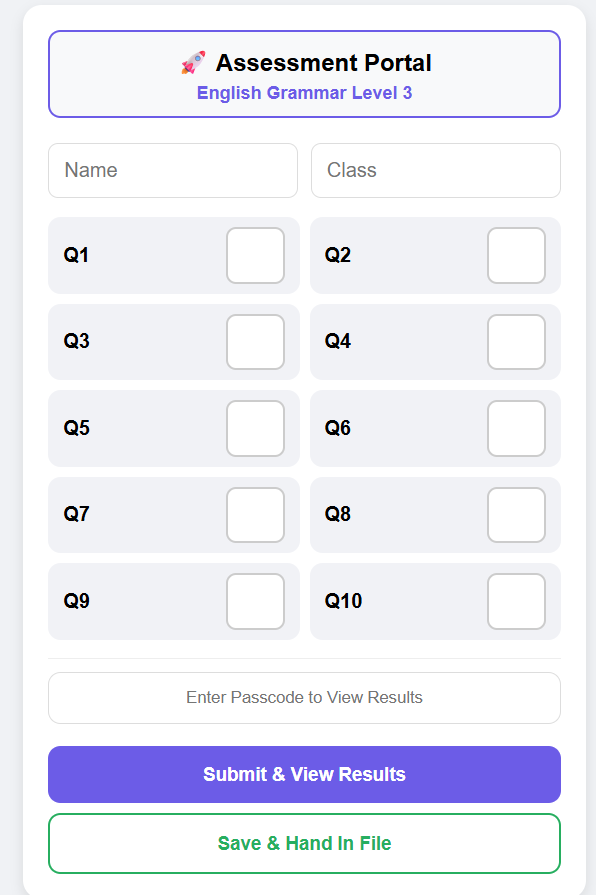
The Auto Marking file is an HTML file uniquely generated for each subject and includes the corresponding number of question boxes based on the specific test.
2. What does it look like exactly?
Below is a sample image of the Auto Marking file
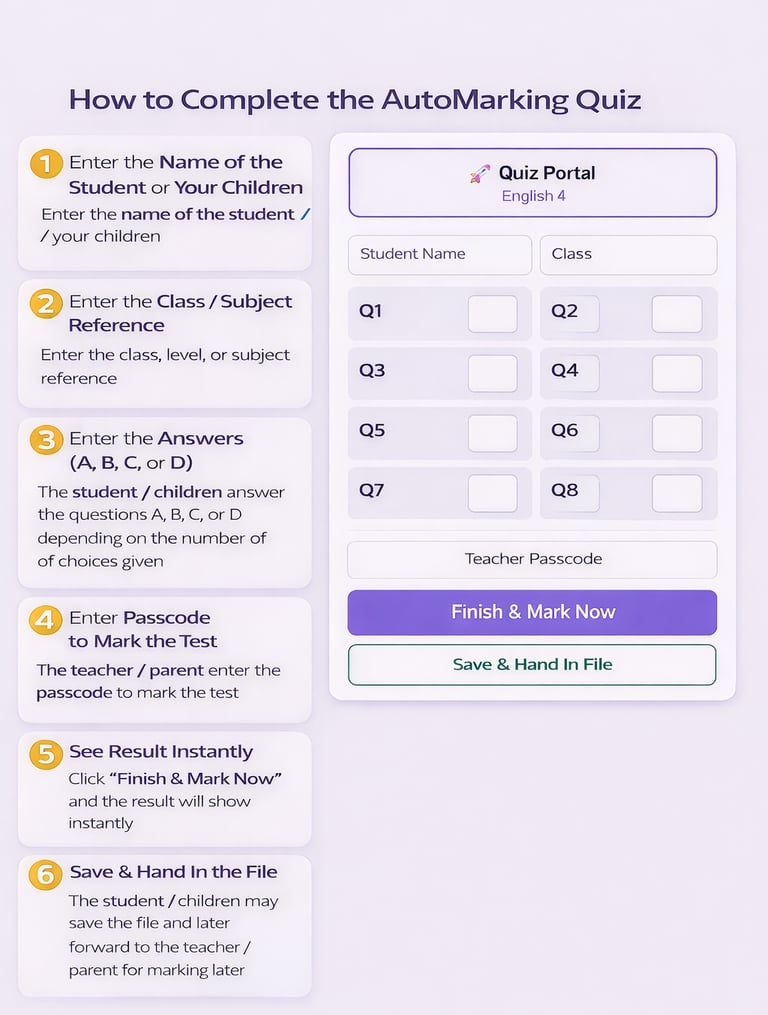
3.How to Fill the Auto Marking File
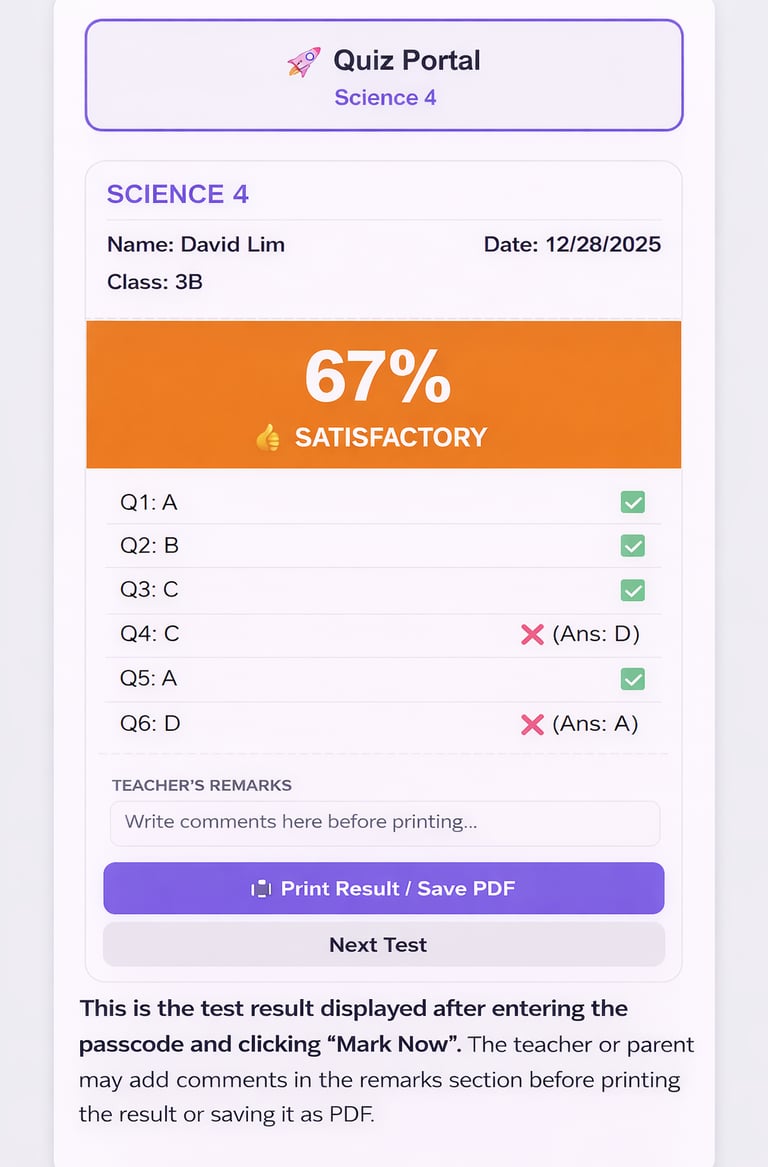
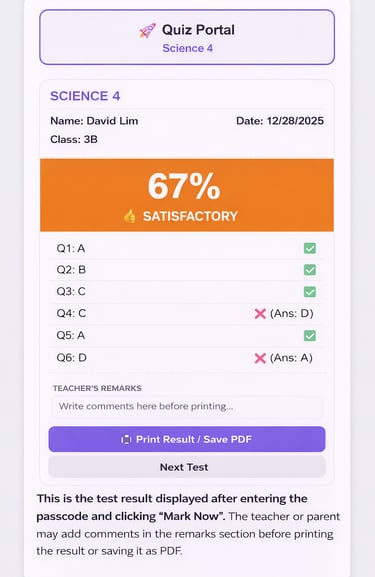
4.Once the correct passcode is entered
The results will show instantly.
You can print or save them as a PDF and add remarks if needed.
Please see the sample image below.
5. The quiz can be marked later by the teacher.
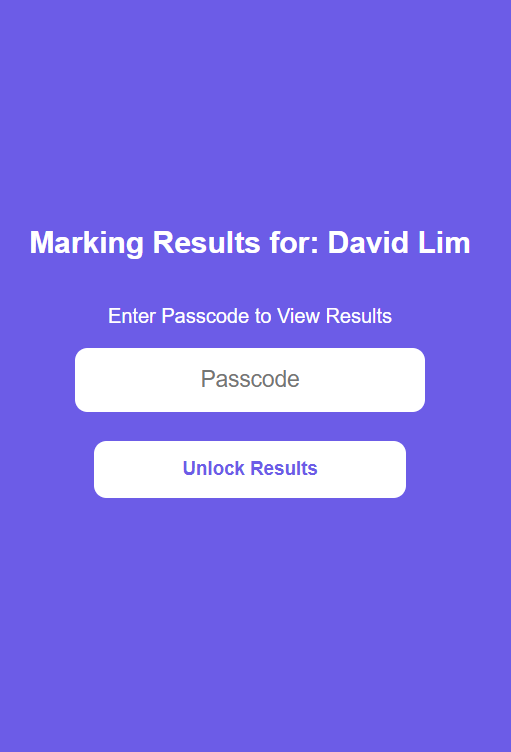
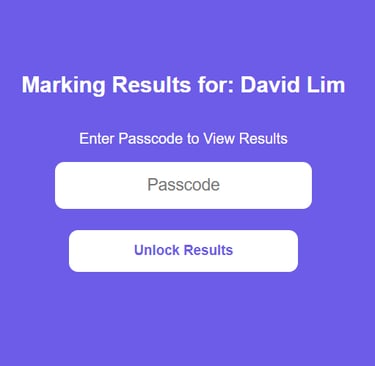
Once students or participants finish the quiz, they simply click “Save & Hand In File” to save it on their computer or mobile phone. The saved file can then be sent to the teacher for marking.
Below is a sample image that appears after you click “Save & Hand In File.
How to Open the Auto Marking File on Mobile Phone & iPad
Besides laptops and computers, the Auto Marking file also works on mobile phones and iPads.
No app installation is required — it opens using a web browser.
IPHONE OR IPAD
IMPORTANT (PLEASE READ FIRST)
Please install Microsoft Edge browser FIRST.
After that, opening the file will be very easy every time.
STEP A (ONE-TIME ONLY): Install Microsoft Edge.
1. Open App Store
2. Search Microsoft Edge
3. Tap Get / Download
4. Wait until installed
Done. You only need to do this once.
STEP B (EVERY TIME YOU RECEIVE A FILE):
1. Open WhatsApp
2. Tap the Auto Marking file
3. Tap Share (box with arrow)
4. Tap Open with Edge
The page will open immediately.
Reminder: Just tap 'Open with Edge'.
ANDROID PHONE
IMPORTANT (PLEASE READ FIRST)
Please install Google Chrome or Microsoft Edge browser FIRST.
After that, opening the file will be very easy every time.
STEP A (ONE-TIME ONLY): Install a Browser
1. Open Play Store
2. Search Google Chrome or Microsoft Edge
3. Tap Install
4. Wait until installed
Done. You only need to do this once.
STEP B (EVERY TIME YOU RECEIVE A FILE):
1. Open WhatsApp
2. Tap the .html file
3. Tap Open / View
4. Choose Chrome or Edge
The page will open immediately.
IMPORTANT NOTES
- Android phones may look slightly different
- Chrome is usually already installed
- No login is required
Reminder: Just tap 'Open with Chrome' or 'Open with Edge'.

Want to See How Auto Marking Works?
Get Your Free Sample Now
See how AutoTick instantly marks objective assessments and saves hours of grading time.
Enter your name and email to receive a free sample instantly.